Showing posts with label How-To Geek. Show all posts

Saturday, 20 April 2019

What’s New in Ubuntu 19.04 “Disco Dingo,” Available Now

Ubuntu 19.04 Disco Dingo desktop

Ubuntu 19.04 is available for download today. With Linux 5.0 and GNOME 3.32, Disco Dingo boasts performance improvements and visual tweaks. Whether or not you upgrade, Disco Dingo lays the groundwork for future long term support releases of Ubuntu.

As always, this latest version of Ubuntu comes six months after the last Ubuntu release, Ubuntu 18.10 “Cosmic Cuttlefish.” Like the cuttlefish before it, this dingo is focused on bug fixes and smaller improvements rather than shiny new features.

So, should you head over to the download site, grab a copy, and roll it out to your main computer? Not necessarily. Disco Dingo isn’t a Long Term Support (LTS) release. Ubuntu 19.04 will enjoy only a short nine months of support and patches, while Ubuntu 18.04 LTS “Bionic Beaver” is the tried-and-true stable desktop environment for now.

A Faster GNOME 3.32 Desktop

GNOME 3.32 application bar on Ubuntu 19.04

Of course, there’s a new wallpaper. But the first thing you’ll probably notice is a new icon on the desktop for your home directory. If you don’t like it, you can install GNOME Tweaks and use it to hide the home directory icon.

In keeping with modern “flat” design, the desktop’s top bar and launcher have solid-black backgrounds. Gone are the transparent versions from 18.10.

The application menus have been moved back to each application’s window. They no longer appear in the toolbar. That’s a change in GNOME and not a design decision from Canonical. Some applications always kept their menus in their own application windows, which made the experience inconsistent. There were also some long-standing issues that were tough to fix. Now, that whole initiative has been canned in favor of a traditional menu placement—each applications menu is in the application’s own window.

Beyond the visual changes, GNOME itself is faster and uses fewer GPU resources thanks to work done by both Canonical and the upstream GNOME team.

Read the remaining 32 paragraphs

Thursday, 18 April 2019

Geek Trivia: If You’ve Received HTTP Status Code 418, It Means The Server Is?

If You’ve Received HTTP Status Code 418, It Means The Server Is?

  1. A Teapot
  2. Restricted
  3. On the Moon
  4. Out of Bandwidth

Think you know the answer?

The Best VPNs to Watch Whatever the Hell You Want in the UK

How to Add, Delete, and Rearrange PowerPoint Slides

powerpoint logo

Perhaps you’ve just imported slides from another presentation, and you want to delete a few and rearrange the others. Or maybe you’ve started from scratch and add new or reorganize existing slides. Whatever the reason, it’s quickly done in a few simple steps.

Adding, Deleting, and Rearranging Slides in Normal View

First, we’ll be working in Normal View. This view is the default view that you’re probably used to working in—one big slide in front of you with the Slide Preview pane on the left-hand side.

To add a new slide, Go to the “Slides” section of the “Home” tab. Here, you’ll have two choices for adding a new slide.

  1. Clicking the “New Slide” button will automatically insert the last used slide layout. Alternatively, you could press Ctrl+M.
  2. Clicking the arrow under the “New Slide” button opens a drop-down menu with several slide templates to choose from.

New Slide normal view

Let’s go ahead and bring down the menu and see what we have. Just choose the slide template that works best for what you want to do.

Slide templates

To insert a slide between two already-existing slides, go to the Slide Preview pane and select the area between the two slides where you want to insert the new slide.

area between slides

Read the remaining 20 paragraphs

Daily Deals: Tenda Nova Mesh Wi-Fi System for $65, Facebook Portal for $100, Nintendo Labo 3-Kit Set for $68, and More

Daily News Roundup: What the Apple-Qualcomm Settlement Means

Apple and Qualcomm met each other in court this week in what was supposed to be a brutal trial. Turns out that wasn’t the case, as the two companies surprisingly agreed to a settlement yesterday. This means three things.

Firstly, the settlement ends all ongoing legal action across the board—from Apple, Apple’s manufacturing partners, and Qualcomm. While it’s unclear why the two suddenly decided to settle, it’s very likely that neither wanted company secrets made publicly available in court. The longer the trial would’ve gone on, the more likely that would’ve been. Makes sense.

Secondly, Apple will pay Qualcomm an “undisclosed amount,” along with royalties going forward. The companies have also reached a six-year patent licensing agreement with the option to extend it an additional two years, as we as a multiyear chipset deal. In other words: it’s really a win for both companies…but mostly for Qualcomm.

Third, this puts Intel out of the 5G game completely. There’s been a lot of banter about Apple’s lack of confidence in Intel to provide the company with the 5G modems required for a 5G iPhone, which is likely another reason the company decided to settle. With Apple and Qualcomm on good terms and entering into a multiyear agreement for chipsets (read: modems), this means Apple no longer has to rely on Intel. As a direct result of the settlement, Intel has announced that it will be exiting the 5G smartphone modem market. Ouch.

So, what does all this really mean for you? It means that a 5G iPhone will be released sooner rather than later, with the possibility of seeing a model hit with the new iPhones this year (though still unlikely). Apple wouldn’t have been able to deliver a 5G iPhone in a timely manner if it relied on Intel’s 5G modems, which are still in development, while Qualcomm’s are already available. This settlement, well, settles that issue.

In other news, Verizon is going to start charging more to activate phones in stores, the disc-less Xbox One is official, Adblock could cause malicious code to be executed, and a lot more. Here are the biggest stories for this morning:

  • Verizon wants more money: Verizon wants people to buy phones online, so it’s going to start charging more to activate your device in stores. That’s absurd. [The Verge]
  • The Xbox One goes disc-less: The long-rumored Xbox One S without a drive for physical media is official. It’ll be available starting May 7th for $250. Which doesn’t make a lot of sense. [Engadget]
  • AdBlock exploits: A new exploit found in AdBlock, AdBlock Plus, and uBlock could allow malicious code to be executed. Fortunately, the AdBlock devs will be fixing the issue “as soon as technically possible.” [Bleeping Computer]
  • Twitter gets better: Twitter announced new tools to clean up online harassment on its platform, claiming they will flag up to 38 percent of abusive tweets. [Engadget]
  • Google fixes AMP: Well, kind of. If you visit an AMP page, you can’t see the exact URL of the page you’re visiting, as it’s run through Google first. A new change will fix that. [Google Webmaster Blog]
  • One person authored Beowulf: The origins of Beowulf have long been debated: when was it written? Who wrote it? But now researches at Harvard have concluded that a single author most likely penned the piece. Neat. [Ars Technica]

Following up on yesterday’s talk about Notre Dame, Digital Trends had a fascinating story about how the fire, while still terrible destructive, would’ve been significantly worse without the use of DJI Drones and a firefighting robot named Colossus. The drones were used to get an aerial view of the fire and how it was spreading, Colossus features a motorized water cannon, a 360-degree HD camera with 25x zoom and thermal imaging, and the ability to tackle nearly any terrain. So cool.

The Top 10 Old Timey Aftershaves for that By-Gone Vibe

How to Turn Your Mac’s Caps Lock into an Extra Modifier Key

How to Change a Site’s Camera and Microphone Permissions in Chrome

Allow or Block Lede

Google Chrome lets you manage which individual sites can have access to your microphone and camera. If you don’t see any video or the mic isn’t picking up voice, you might need to change the permissions Chrome is giving to a site. Here’s how.

How to Change a Site’s Permissions in Chrome

For security purposes, Chrome prompts you any time a site requests access to your microphone or webcam. If you accidentally clicked “Block” the first time you saw the prompt, or you just want to revoke the permissions you previously gave, we’ll show you how to manage those settings.

Knowing how and where to access the settings related to a site’s permissions to your computer’s hardware is important in case you ever need to change your mind as to what a website is allowed to use.

There are basically two ways to manage the permissions for microphone and webcam to a site: from the Omnibox or inside Chrome’s settings.

Change a Site’s Permissions From the Omnibox

This method works when you’ve already set the permissions for the microphone or camera and want to change them while visiting that particular site.

Go to the website for which you want to change the permissions and click the lock icon on the leftmost side of the Omnibox.

Click the lock icon in the Omnibox

From the menu that appears, click either the microphone or camera, then from the drop-down menu, select “Allow” or “Block,” then click the X to save your changes.

Read the remaining 24 paragraphs

Blue Ember XLR Mic Review: It’s Time to Break Away from USB Mics

How to Exit the Vi or Vim Editor

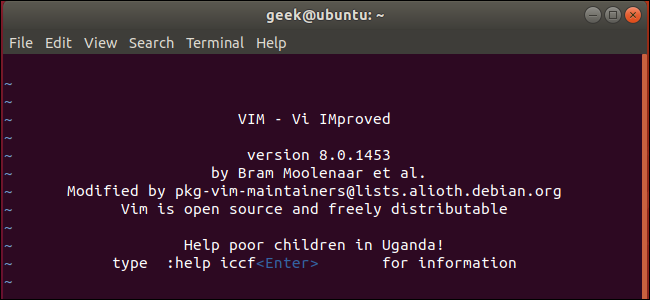
vi editor on Ubuntu Linux

The vi editor is confusing if you’re not used to it. It takes a secret handshake to escape this application if you’ve stumbled into it. Here’s how to quit vi or vim on Linux, macOS, or any other Unix-like system.

The Quick Answer

If you’re in vi or vim and need to get out—with or without saving your changes—here’s how:

  • First, press the Esc key a few times. This will ensure vi is out of Insert mode and in Command mode.
  • Second, type :q! and press Enter. This tells vi to quit without saving any changes. (If you do want to save your changes, type :wq instead.)

If you want to learn the Linux command line, you’ll need to know a lot more than that. Read on and we’ll show you just how vi works and why the instructions for quitting are so unusual. vi is an important, powerful tool and the learning curve is worth it.

vi, The Ubiquitous Editor

Because vi is everywhere the chances are you’re going to run up against it. You can even find yourself inside vi by accident. Perhaps someone asks you to look at their Linux computer for them. You issue a command like crontab -e , and vi pops up. Surprise, someone has configured the default editor for crontab to be vi.

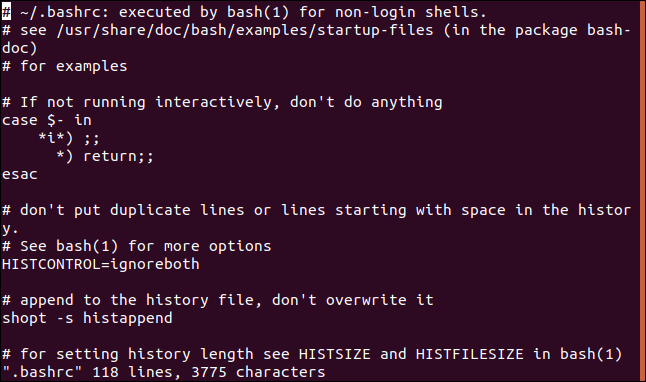
Perhaps you’re administering a system where vi is the only editor, or the only one that will work through a remote SSH session, and you need to edit a user’s .bashrc file.

The command to start vi and open a file is straight forward. Type vi , a space, and then the filename. Press Enter. The program that is launched might be vi or it might be vim , an ‘improved vi‘. It depends on your Linux distribution—for example, Ubuntu uses vim . All of the instructions in this article apply equally to vim.

 vi .bashrc

.bashrc in vi

The immediately noticeable difference between vi and other editors is that when vi launches you can’t just start typing text. That’s because vi is a modal editor. Editing is performed in one mode, the Insert mode, and issuing commands is performed in the Command mode. vi launches into Command mode.

Read the remaining 25 paragraphs

The All-Digital Xbox Fulfills Microsoft’s Original Xbox One Vision

Wednesday, 17 April 2019

Geek Trivia: Which Novel Is Stephen King’s Longest?

Which Novel Is Stephen King’s Longest?

  1. Insomnia
  2. Under the Dome
  3. The Stand
  4. It

Think you know the answer?

Daily Deals: The New iPad Pro for $675, Surface Go for $400, an $80 Nova Mesh Wi-Fi System, and More

How to Make Diagonal Text in Word

word logo

If you’re looking to add a little bit of pizzazz or graphic design elements to your Word document, you can easily create diagonal text using the text box and WordArt options. In this article, we’ll show you exactly how to make diagonal text in Word.

How to Make Diagonal Text in Word with a Text Box

One of the easiest ways to make diagonal text in Word is with a text box. To do so, you need to make a text box first!

Switch to the “Insert” menu.

switch to insert menu

Click the “Text Box” button.

click the text box button

Your text box will now appear in Word. You can double-click the text box to type any text you’d like.

type text into the box

Read the remaining 27 paragraphs

The Best Apple Pencil Alternatives

The PlayStation 5 Sounds Like An Absolute Beast of a Console

Daily News Roundup: MS Office Exploits Now Make Up 70 Percent of Attacks

According to new research from Kaspersky Labs, finding and exploiting vulnerabilities in Microsoft Office is the new hotness. According to a presentation on its findings, around 70 percent of all attacks detected in Q4 2018 targeted Office.

That’s up by nearly four times the percentage from just two years before, at the end of 2016. What’s most intriguing about Kaspersky’s findings, however, is that none of the most exploited vulnerabilities targeted Office directly, but exploits found in specific components of the software.

So, why Office? Because Office is prolific. What’s more, because of its prolificacy, it’s often the focus of research to find specific vulnerabilities (by the good guys, mind you). But once a specific vulnerability becomes public, an exploit is available on the dark web “in a matter of days,” according to ZDNet. Seriously, you can’t win.

In other news, iOS 13 may get a system-wide dark mode, the Apple Pencil has some weird issues, Google takes steps towards making sure apps from new developers are safe, Microsoft is making its own AirPods, and more. Here are the top stories from April 16th, 2019.

  • iOS 13 may get a system-wide dark mode, detachable windows for multitasking, undo gestures, and a lot more. [9to5Mac]
  • If you charge your Apple Pencil with your iPad Pro, you may have issues unlocking your car with a key fob. Wait, what? [Apple Support via 9to5Mac]
  • Google recently highlighted some changes it’s going to make regarding its relationship with Android app developers. The key here, however, is that it’s going to take “more time to review apps by developers that don’t have a track record.” This means more human interaction to help prevent malware from spreading in Google Play. Good. [Android Developers Blog]
  • It looks like the highly-leaked Pixel 3a and 3a XL will be available starting on May 7th. Not only that, but Verizon’s exclusivity for Pixel phones may be coming to an end, as it’s rumored T-Mobile will starting carrying the 3, 3XL, 3a, and 3a XL. This is such a smart move. [Android Police, The Verge]
  • Microsoft wants in on this sweet truly wireless earbud action, so it’s developing its own. They’re currently codenamed “Morrisson,” but let’s be real here: they’re going to call them Surface Buds. [Thurrott]
  • AT&T solid its share of Hulu back to, well, Hulu, which means Disney now owns 66 percent of the service. As pointed out by The Verge, that could mean big changes for the service as we know it. Ugh. [The Verge]
  • Sony recently spilled some details of its upcoming console—presumably called “PlayStation 5” but never explicitly stated—and it sounds like an absolute beast. My excitement is overwhelming. [Wired]
  • In super cool science news, scientists were recently able to 3D print a functional heart using the patient’s cells. What an absolutely incredible breakthrough for transplant patients. [Engadget]
  • In less happy science news, SpaceX lost Falcon Heavy’s core booster to rough seas. The core was successfully landed on a drone ship (for the first time, no less), but the sea had other ideas. What a downer. [The Verge]

While it has nothing to do with science or technology, yesterday brought the devastating news of the fire at Notre Dame’s Cathedral. It was truly heartbreaking to see a building that has been standing for nearly 700 years engulfed in flames, but the resilience of the French people who watched is nothing short of inspiring. As the Cathedral burned, they gathered together to sing hymns in a powerful display of humanity.

How to Change the Default crontab Editor

How to Change Your AirPod’s Ear Detection and Tap Controls